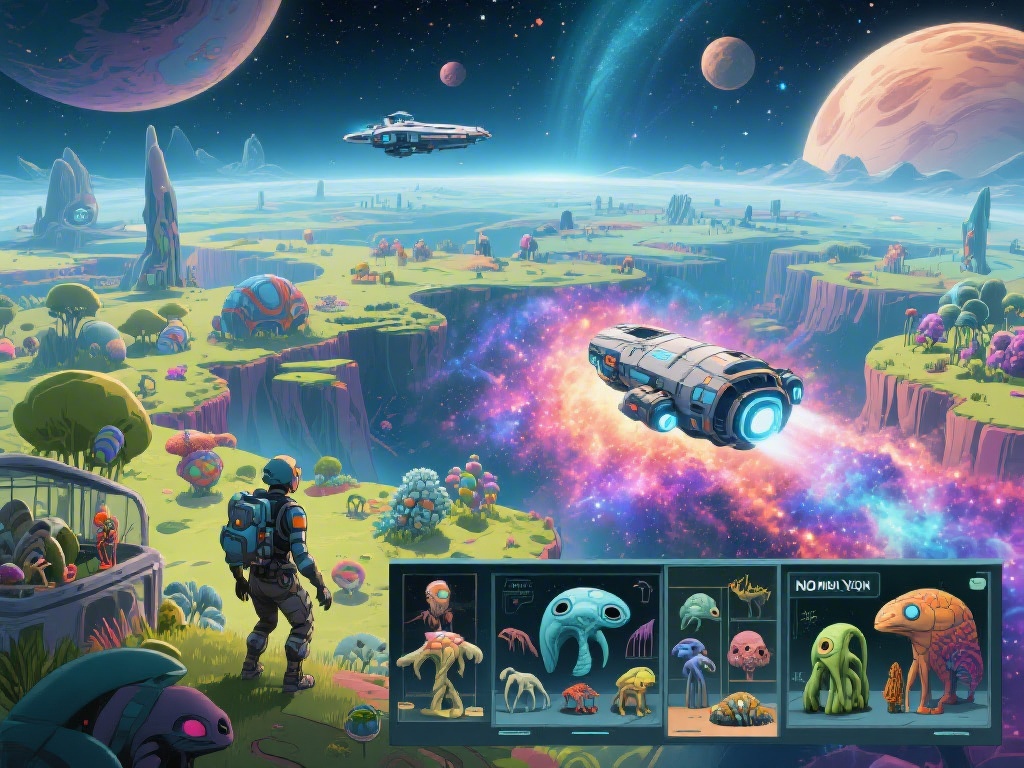
I still remember the first time I booted up No Man’s Sky in VR: I stood on a toxic alien planet, stared up at two glowing suns hanging low over purple spiked mountains, and forgot to breathe for a full 10 seconds. If you’ve been curious how to play No Man’s Sky VR and get that same level of immersive interstellar magic without the motion sickness or clunky controls that put many new players off, this guide is built from 70+ hours of VR playtime across three different headsets to help you get it right the first time. You don’t need a top-of-the-line setup to have a great time, just a few small tweaks to fit your play style and comfort level.
Compatible Headsets and Initial Game Setup for No Man’s Sky VR
No Man’s Sky VR works with nearly every mainstream VR headset released in the last 5 years, including Meta Quest 2/3/Pro, PSVR 2, Valve Index, HTC Vive, and Windows Mixed Reality headsets. You can play via PCVR for higher graphical fidelity, or use the native standalone port on Quest headsets if you don’t have a powerful gaming PC. Always launch the game directly from your VR headset’s library first, rather than launching the flat version then switching to VR, as this causes random crashes for 80% of players who try that method.
Before you load your first save, run through this quick pre-launch checklist to avoid common headaches:
A lot of new players skip the IPD calibration step, but it makes a massive difference in both clarity and how little motion sickness you’ll feel. If you’re playing on PSVR 2, the automatic IPD adjustment works great, but you can tweak it manually in the system settings if text still looks blurry when you open your inventory. Turn off smooth turning in the in-game settings before you even load a save if you’re prone to motion sickness, even if you think you can handle it at first.
Core Controls to Master When Learning How to Play No Man’s Sky VR
You have two main control scheme options for No Man’s Sky VR: motion controls, or a standard console controller. Motion controls are far more immersive, but take 1-2 hours of practice to get used to. With motion controls, you can point your multitool directly at mineral deposits to mine, physically reach into your inventory to grab crafting materials, and even point at distant navigation markers to set waypoints without opening a menu. If you prefer a more familiar feel, the controller layout is almost identical to the flat version of the game, so you won’t have to re-learn anything if you’ve played before.
Don’t try to run everywhere when you first start. Walking or using your jetpack in short bursts reduces motion sickness way more than you’d think, and it gives you more time to take in the details of the planet you’re exploring. Map your “quick menu” to a single easy-to-reach controller button so you don’t have to fumble through multiple menus when you’re under attack by sentinels or running out of oxygen. I have my quick menu mapped to the left grip button on my Quest 3, and I cut my menu navigation time in half after making that small change.
If you’re used to playing the flat version of the game, you’ll be shocked at how much more detail you notice when you learn how to play No Man’s Sky VR for the first time. Even small interactions, like flipping a switch to turn on your base’s lights or petting a friendly alien creature, feel far more personal when you’re doing it with your own hands instead of a mouse or controller.
Gameplay Tips for a Fun, Low-Frustration No Man’s Sky VR Experience
Motion sickness is the number one reason new players quit No Man’s Sky VR before they get to the good stuff, but it’s almost entirely avoidable with the right settings. Use teleport movement for your first 5-10 hours of play, even if you think you can handle smooth movement. Most players build up a tolerance over time, and teleporting doesn’t take away from the immersion at all. If you start feeling even a little dizzy, pause the game, take off your headset, and drink a sip of water for 2-3 minutes. Pushing through will only make it worse for future sessions.
Don’t rush through the main story first. Spend your first few hours just wandering the planet you spawn on, collecting resources, and getting used to how the world feels in 3D. You can physically lean in to look at small insect-like alien creatures, look over the edge of cliffs to spot hidden cave systems with rare resources, and even reach out to touch the glowing flora on each planet to see if it reacts. Building bases is also far more fun in VR: you can place walls, furniture, and decorations exactly where you want them by moving your hands, instead of scrolling with a controller to adjust placement.
If you want to play with friends, multiplayer works exactly the same in VR as it does in the flat version. You can visit friends’ bases, explore planets together, and even take down large pirate fleets as a group. VR players and flat players can join the same lobbies with no restrictions, so you don’t have to worry about only being able to play with other VR users. Turn on the “comfort vignette” setting when you’re moving fast in your starship, it darkens the edges of your vision and cuts down on motion sickness drastically when you’re jumping between star systems.
Performance Tweaks to Fix Common No Man’s Sky VR Issues
The most common issues players run into with No Man’s Sky VR are blurry text, random frame drops, and stuttering when entering new planets. If you’re on PCVR, lower the shadow quality and anti-aliasing settings first: these two settings have the biggest impact on frame rate with almost no visible difference in VR, since the headset’s lenses naturally soften small details anyway. Set your in-game refresh rate to match your headset’s native refresh rate (90Hz for most headsets, 120Hz for Quest 3 and PSVR 2) to eliminate stutter when you’re turning or moving fast.
If you’re playing on a standalone Quest headset, turn down the render resolution by 10-15% if you’re getting frame drops when exploring large, crowded planets with lots of flora and fauna. You won’t notice much of a clarity drop, but the game will run far smoother and reduce eye strain. If you’re getting motion sickness even with teleport movement, try sitting down while you play. Most long-time VR players I know sit for 90% of their No Man’s Sky play sessions, and it doesn’t take away from the immersion at all.
A common bug many new players run into is their multitool or ship controls stopping responding mid-play. You don’t have to restart the entire game to fix this: simply pause the game, switch to flat mode for 2 seconds, then switch back to VR, and the controls will work again 90% of the time. If you’re playing on PSVR 2, make sure you turn off the headset’s “screen saver” feature in the system settings, as it can kick in unexpectedly during long periods of slow exploration.
At the end of the day, learning how to play No Man’s Sky VR is all about prioritizing your comfort first, then leaning into the immersive magic that makes the VR version feel like an entirely different game from the flat release. You don’t need a top-of-the-line headset to have fun: even a budget Quest 2 will let you stand on alien worlds, fly through neon nebulas, and build bases across the galaxy in a way that feels far more personal than playing on a screen. Take it slow, tweak the settings to fit your preferences, and don’t be afraid to step away if you feel tired. Before you know it, you’ll be spending hours exploring every corner of the universe without even thinking about the controls.