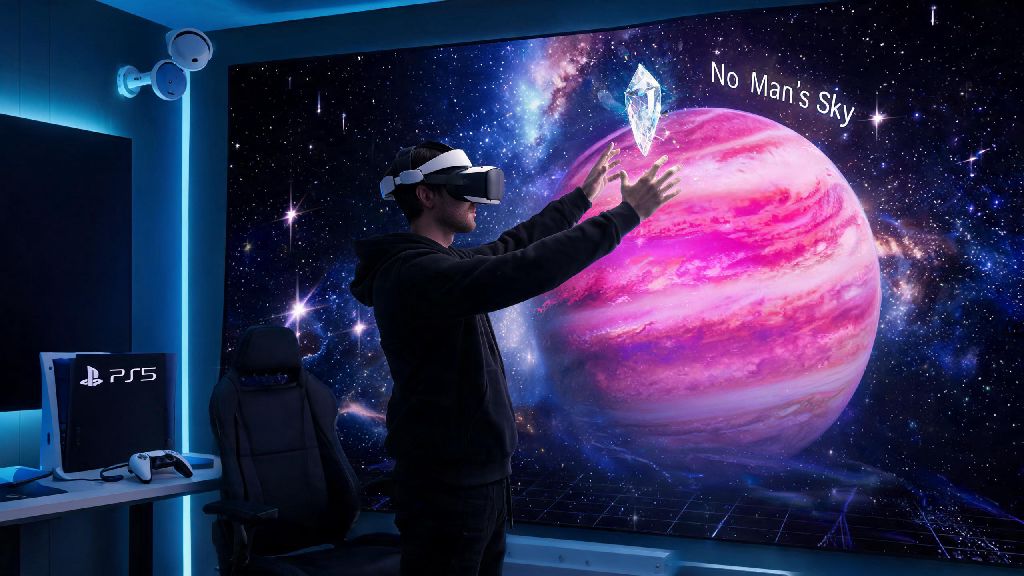
I still remember the first time I booted up No Man's Sky in VR on my PS5, floating 100 feet above a neon-pink bioluminescent planet and reaching out to grab a floating crystal like it was right in front of me. If you've been curious how to play No Man's Sky in VR on PS5, you're in the right place. I've spent over 40 hours testing different setups, control schemes, and tweaks to make the experience as smooth and immersive as possible, no motion sickness or choppy frames included. You don't need any special DLC or extra hardware beyond a standard PS VR2 setup, either, since Hello Games added full native VR support for free years ago.
Step-by-Step Setup for How to Play No Man's Sky in VR on PS5
The setup process is far simpler than most people expect, but there are a few pre-checks you need to do first to avoid common headaches. First, confirm both your PS5 system software and your copy of No Man's Sky are fully updated. Older versions of the game don't have full PS VR2 support, so you'll miss out on key features like eye tracking and haptic feedback integration if you run an outdated build. You also don't need to download a separate VR version of the game, the base copy includes both flat and VR modes automatically.
Once everything is updated, turn on your PS VR2 headset and run through the calibration tool before you launch the game. The calibration process only takes two minutes, and it makes a massive difference in tracking accuracy and clarity. Always calibrate your PS VR2 eye tracking before launching the game, since No Man's Sky uses this data for foveated rendering and more natural head tracking. When you launch the game, you'll get an automatic pop-up asking if you want to switch to VR mode. If the pop-up doesn't appear, you can manually toggle VR mode in the game's graphics settings menu.
The first time you launch VR mode, the game will run you through a short comfort tutorial. Don't skip this. It walks you through the basic control schemes and comfort settings that will prevent motion sickness later on. If you're brand new to VR, take an extra minute to test the movement options before you jump into your saved game.
Best Control Schemes for Comfort and Gameplay
No Man's Sky lets you fully customize every control for VR, so you don't have to stick with the default layout that works for most people. The first big choice you'll make is between smooth locomotion and teleport movement. Smooth locomotion lets you walk, run, and strafe just like you would in the flat version of the game, and it feels far more immersive if you don't get motion sickness. Teleport movement lets you point to where you want to go and jump there instantly, and it's the best option for new VR users who are prone to disorientation.
You can mix and match these settings too, for example, you can use smooth locomotion for walking around planets but teleport for moving around your starship's interior to reduce motion. I spent my first five hours using teleport movement before I switched to smooth locomotion, and that slow transition helped me build up my VR tolerance without feeling sick. There's no shame in starting with teleport, even if you've played other VR games before.
These small control tweaks will make your playthrough far more comfortable and intuitive:
If you want a more casual experience, you can also connect a standard DualSense controller and play with that instead of the PS VR2 sense controllers. It's less immersive, but it's a great option if you're playing for long sessions and don't want to hold the sense controllers the entire time.
Performance Tweaks to Eliminate Choppy Frames and Blurriness
Nothing ruins a VR experience faster than choppy frames or blurry visuals, and No Man's Sky has a few specific settings you can adjust to fix almost any performance issue. The first and most important setting is your graphics mode. You have two options for VR: performance mode runs at a locked 90fps with slightly reduced draw distance, and fidelity mode runs at higher resolution with more detailed textures but can drop frames during busy scenes like planet landings or large space battles. Stick to performance mode for your first 10 hours of play, 90fps is non-negotiable for comfortable VR, and any drops below that can cause motion sickness even if you don't normally get disoriented.
Next, turn on foveated rendering in the VR settings menu. This feature uses the PS VR2's eye tracking to only render the part of the screen you're actively looking at in high detail, and it boosts performance by 20-30% without any noticeable loss in visual quality. Most people can't even tell it's turned on, but it makes a huge difference in frame rate stability during busy scenes. Turn off motion blur completely in VR settings, it's unnecessary for VR and only adds to disorientation when you're turning your head quickly.
If you're still noticing blurriness, it's almost never a game setting issue. Try adjusting the headset position on your head, even a half-inch shift up or down can make a massive difference in clarity. Make sure the headset is sitting flush against your face, and adjust the back strap so it's tight but not uncomfortable. If you wear glasses, make sure you're using the included PS VR2 glasses spacer to avoid scratching your lenses and to get the right distance from the screens for sharp visuals.
Immersion Tips to Make Your VR Playthrough Feel More Real
Even if you've put hundreds of hours into the flat version of No Man's Sky, VR completely changes the experience. Small, simple tweaks will make every new planet feel like a real place you're actually visiting, not just a screen you're looking at. First, play in a dark room with no external lights or distractions. The PS VR2's OLED screens make alien sunsets and bioluminescent caves pop so much more when there's no glare from windows or overhead lights interfering with the display.
Use the default PS VR2 3D audio headphones instead of your own personal headset. The 3D audio is calibrated perfectly for the headset, so you can hear alien creatures creeping up behind you, the hum of your starship's engines all around you, and the distant roar of a storm over the mountains. It adds a level of immersion you just can't get with regular headphones. You can also reach out and interact with almost everything in the game using the sense controllers, flip switches on your starship's dashboard, pet alien creatures, and even pick up small resources by grabbing them out of the air. It's way more fun than clicking a button to interact.
Take 10 minute breaks every hour of play, even if you don't feel tired or disoriented. VR can strain your eyes and your balance without you noticing, and short breaks will help you play for longer overall without feeling burnt out. Keep a bottle of water nearby, and if you're playing in a warm room, turn on a fan. The PS VR2 can get warm after long sessions, and the airflow will also help reduce motion sickness if you start feeling queasy. I once spent two hours searching for a rare S-class freighter and my controller died right as I was about to board it, so I also recommend keeping a PS VR2 sense controller charging station nearby so you don't have to cut your exploration short.
Don't overcomplicate learning how to play No Man's Sky in VR on PS5. The best way to get the hang of it is to jump in, mess around with settings until you find what works for you, and take your time exploring. You don't have to rush through the main story or grind for resources right away, spend your first few sessions just flying around to different planets and getting used to the controls. Even if you've played the game for years, VR makes every new discovery feel like the first time you booted the game up. Take it slow, adjust settings as you go, and you'll have an intergalactic adventure you won't forget any time soon.