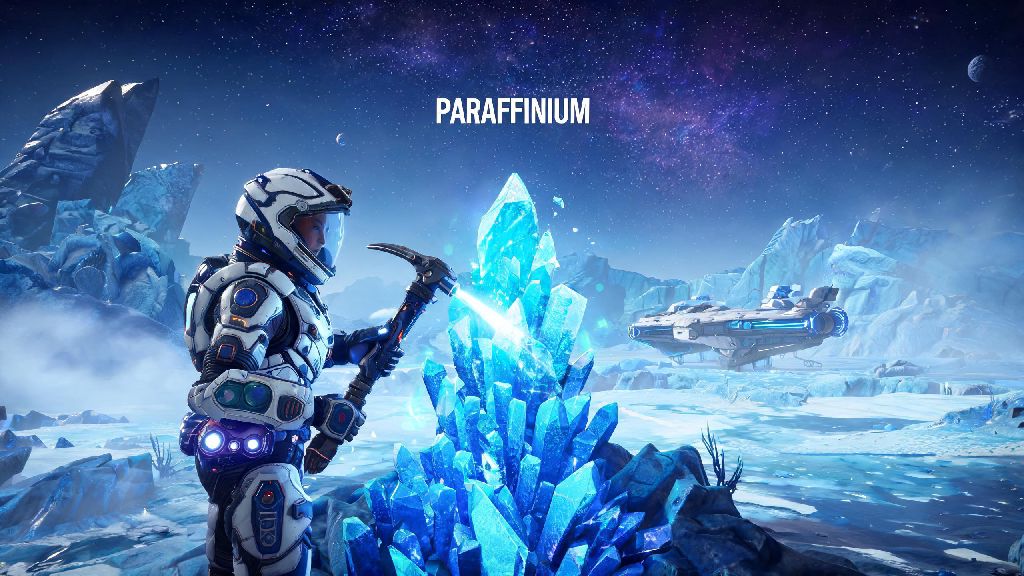
I still remember the first time I booted No Man's Sky in VR, and instead of looking at a planet through a monitor, I was standing on it, feeling the wind through alien grass and staring up at three suns dipping below the horizon. It's one of the most magical gaming experiences you can have right now, but a lot of players give up early because of motion sickness, choppy performance, or confusing setup steps. This guide breaks down everything you need to know about how to play No Man's Sky in VR, no high-end tech degree required, so you can jump straight into exploring the galaxy without the frustration.
How to Play No Man's Sky in VR: Initial Setup for All Platforms
The good news is No Man's Sky has full official VR support built right into the base game, no extra DLC or paid upgrades needed, no matter what platform you're on. First, make sure your game is updated to the latest version, because Hello Games releases regular patches that fix VR-specific bugs and add new quality of life features for headset users. Always launch your headset first before opening No Man's Sky to avoid crashes or the game defaulting to flat mode when it loads.
For PC VR users, whether you're using a Valve Index, Meta Quest, or HTC Vive, you'll need to have your headset's companion app (SteamVR, Oculus App) open and connected before you hit play on Steam, GOG, or the Epic Games Store. The game will automatically detect your headset and prompt you to switch to VR mode if it doesn't launch directly into it. If you're playing on PSVR 2, the process is even simpler: just plug in your headset, turn on your Sense controllers, and launch the game, and it will give you the option to switch to VR right away. Meta Quest users playing via Air Link or Virtual Desktop should make sure they're connected to a 5GHz wifi network and within 10 feet of their router to avoid input lag right off the bat. You don't need to start a new save file either; you can pick up right where you left off in your flat mode playthrough, all your bases, ships, and resources will carry over seamlessly.
Core Comfort and Performance Settings to Adjust First
Motion sickness is the number one reason people quit VR No Man's Sky within their first 10 minutes, but you can avoid almost all of it by tweaking a few settings before you start exploring. Snap turn is the best setting for new VR players to avoid motion sickness, and you can adjust the turn angle to 30 or 45 degrees so it feels less jarring than the default 90 degree turns. If you get used to it later, you can switch to smooth turning, but most players find snap turn works perfectly for regular exploration. You also have the option to choose between smooth movement and teleportation for walking around; teleport is ideal for players who are extra sensitive to motion, while smooth movement feels far more immersive once you build up your "VR legs" after a few sessions.
When it comes to performance, small tweaks make a massive difference in how smooth your experience is, even if you don't have a top-tier gaming PC or console. Set your render resolution to 100% of your headset's native resolution instead of supersampling, unless you have a GPU like an RTX 4090 or RX 7900 XTX. Volumetric fog and cloud quality are the two biggest performance hogs in VR mode, so turning those down to medium or low will give you a huge framerate boost with almost no noticeable drop in visual quality. PSVR 2 users can choose between performance mode (120fps, slightly lower graphical detail) and quality mode (60fps upscaled, sharper visuals); performance mode is better for most players, as higher framerates drastically reduce motion sickness and input lag.
These are the non-negotiable settings you should adjust before you start playing for the first time:
- Enable Vibration and haptic feedback for your controllers to feel mining pulses, ship thrusters, and creature interactions
- Turn off head bobbing completely to reduce disorientation during walking or running
- Set your in-game height to match your real height for accurate interaction with objects, NPCs, and building parts
- Toggle "comfort vignette" on for all fast movement, including flying, running, and fast traveling between planets
Gameplay Tweaks to Make Your VR Exploration More Immersive
Once you have your settings dialed in, you can start taking advantage of all the VR-specific features that make No Man's Sky feel so much more alive than the flat version. You don't have to click buttons to open your multi-tool menu or adjust your ship's throttle; you can physically reach over your shoulder to grab your multi-tool, lean forward in your ship's cockpit to flip switches on the dashboard, or reach into your inventory pouch on your hip to pull out resources. Use the gesture controls for building if you enjoy base construction – it feels like you're actually placing walls, planters, and decorations with your own two hands, which turns a fairly routine flat mode activity into one of the most fun parts of the VR experience.
You can also lean around corners to scan for hostile creatures, look up at passing freighters by just tilting your head, and even point at resources for your multiplayer teammates to see without typing a single message. If you want a more immersive experience, turn off non-essential HUD elements like the minimap and resource notifications so you have a full, unobstructed view of the alien world around you. Don't push yourself too hard when you first start, either; 15 to 20 minute sessions are perfect for getting used to VR without fatigue, and you can slowly extend your playtime as you get more comfortable. Many players find that taking a 5 minute break every half hour keeps their eyes from getting strained and prevents motion sickness from creeping in later in the session.
Common VR No Man's Sky Issues and How to Fix Them
Even with perfect setup, you might run into a few common issues that pop up for VR players, but most of them have simple fixes. If you're still getting motion sickness even after adjusting all your comfort settings, don't worry; that's totally normal for new VR users. Start with slow activities like mining or base building before you try flying your ship or running across open terrain, and your body will get used to the movement after a few sessions. If your controllers are tracking incorrectly or drifting, make sure there are no bright lights or reflective surfaces behind you that are messing with your headset's sensors, and double check that your controllers are fully charged before you start playing.
If you're getting regular crashes or stutter on PC, close any background apps that use GPU resources, like video streaming services or editing software, before you launch the game. Verify your game files through Steam or GOG if you're getting regular crashes in VR mode – corrupted game files are one of the most common causes of VR-specific bugs that don't show up in flat mode. PSVR 2 users who notice the game randomly switching back to flat mode should make sure their Sense controllers are properly paired to their console, and that the headset isn't detecting a second player accidentally. If you're getting eye strain after short sessions, adjust the in-game brightness down slightly, and make sure your headset is fitted properly to your face with no light leaking in around the edges, as light leak can cause extra eye fatigue over time.
Once you get past the initial setup and tweaking phase, playing No Man's Sky in VR is an experience you can't get anywhere else, from floating next to a giant space whale to sitting on top of a mountain watching a storm roll over an alien desert. You don't need a $2000 PC to have a great time either; even mid-range setups can run the game smoothly with the right settings adjustments. Now that you know exactly how to play No Man's Sky in VR, all that's left is to grab your headset, jump into your ship, and go explore the 18 quintillion planets waiting for you out there.