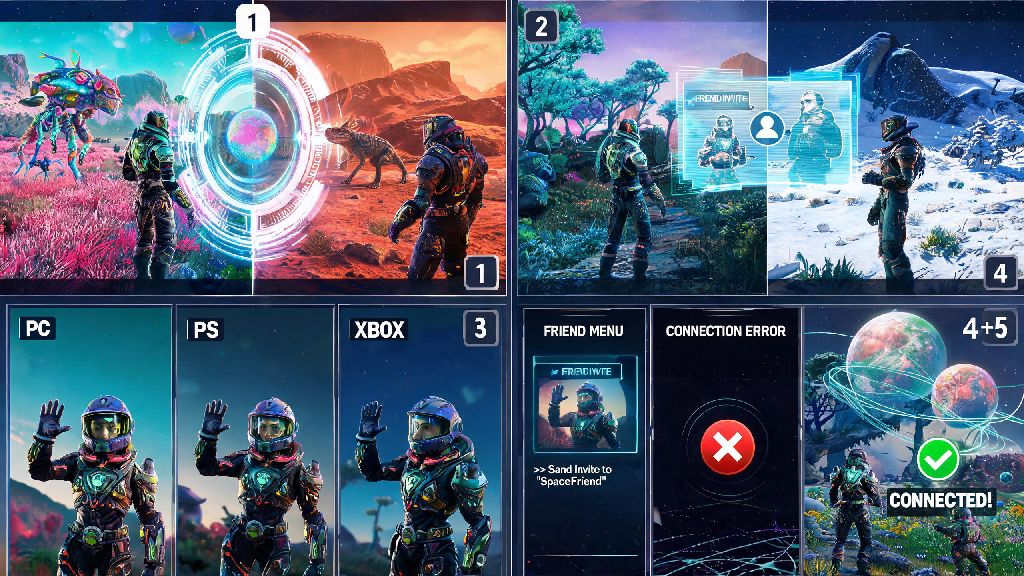
There’s nothing quite like stumbling on a vibrant, exotic planet full of rare resources and weird alien creatures in No Man’s Sky, and the only thing that makes that moment better is getting to share it with a friend. But if you’re new to the game’s multiplayer features, you might run into confusing menus, connection errors, or even total failure to link up with people on your friends list. We’ve put together this full breakdown to walk you through exactly how to join friend in No Man’s Sky, no matter if you’re playing on PC, PlayStation, Xbox, or even cloud gaming services. We’ve also included fixes for the most common issues that stop players from connecting, plus pro tips to make your co-op sessions run as smoothly as possible.
Pre-Checks Before You Learn How to Join Friend in No Man’s Sky
Before you even open the friends menu, there are a few quick checks you and your friend should run through to avoid unnecessary frustration. Most failed join attempts happen because of one of these easily fixed mismatches, so taking 30 seconds to confirm these details will save you 10 minutes of troubleshooting later. I’ve run into the version mismatch error myself a dozen times, usually when I forget to update my Steam copy after a new patch drops, so don’t skip this step.
First, confirm you and your friend are on the same game mode. You will never be able to join a friend who is on a different game mode, even if you’re on the same platform. That means if you’re playing on Survival mode, you can’t join someone on Creative, Permadeath, or a custom mode save. If you’re playing Permadeath, note that the same rules apply even in co-op: if you die while in your friend’s session, your save is permanently erased, so keep an eye on your hazard protection and health bars when you’re exploring dangerous planets together.
Next, make sure both of you have the latest game update installed. Always make sure your game is updated to the latest patch before trying to connect, as Hello Games releases frequent updates that change core game files, and mismatched versions won’t be able to sync. If you’re playing on console, check your platform’s store for pending updates, and if you’re on PC, restart your game launcher to force it to check for new patches. You should also confirm that crossplay is enabled in your in-game network settings if you’re playing with someone on a different platform, like a PS5 player joining an Xbox Series X friend.
Step-by-Step Process to Join a Friend’s Session
Once you’ve run through all the pre-checks, joining a friend’s session only takes a few clicks, no matter what platform you’re on. The menu layout is almost identical across all devices, so you won’t have to learn a whole new process if you switch between PC and console regularly. If you’re playing on a cloud service like GeForce Now or Xbox Cloud Gaming, you’ll follow the exact same steps as the native version of the game for your platform.
Once the connection goes through, you’ll either spawn directly near your friend’s current location, or at the nearest space station in their system, depending on how far you were when you joined. If they’re on a planet, you’ll get a waypoint pointing directly to their location so you don’t have to search for them across the entire surface. If you get a “session not found” error at this stage, ask your friend to check if their lobby is set to “Friends Only” instead of “Invite Only”. If it’s set to Invite Only, you won’t be able to join manually, and they’ll have to send you a direct invite through the same friends menu.
If you’re trying to join a friend who is in a galaxy you haven’t unlocked yet, you’ll get a prompt asking if you want to travel directly to their galaxy. You don’t have to complete the main story quest to jump to a different galaxy with a friend, which is a great shortcut if you want to explore later game areas with more experienced players. Just note that you won’t be able to travel back to your original galaxy on your own until you unlock the required warp upgrades, so make sure you’re ready to make that jump before you confirm.
Fixes for Common Friend Join Errors
Even if you follow all the pre-checks and steps correctly, you might still run into connection errors every now and then. Most of these are caused by simple network or account settings that take two minutes to fix, so you don’t have to give up on your co-op session before trying these quick solutions. I’ve used every single one of these fixes at least once when playing with friends across different platforms, and they work for 95% of common connection issues.
The most common error for crossplay players is the “unable to connect to host” message, which almost always happens because one player hasn’t linked their Hello Games account to their platform account. You can link your account through the official Hello Games website, and you only have to do it once per platform. Once both of you have linked accounts, crossplay connections will work almost every time without extra steps. For PC players, make sure No Man’s Sky is allowed through your Windows Firewall and any third-party antivirus software, as overprotective security settings often block peer-to-peer connections for multiplayer games.
If you’re getting a NAT type error, that means your internet router is blocking the connection ports No Man’s Sky uses for multiplayer. To fix this, enable UPnP in your router’s admin settings, which will automatically open the required ports for the game. If you can’t access your router settings, switching to a wired ethernet connection instead of Wi-Fi often fixes moderate or strict NAT type issues for console players. You can also try having your friend host the session instead of you, as some NAT types only work when one player is the host.
If nothing else works, try restarting both your game and your internet router. Sometimes temporary cache issues on your device or your internet provider’s end can block connections, and a quick restart clears those up almost immediately. You can also try joining a random public session first, then joining your friend’s session after that, as that often resets your multiplayer connection status in the game.
Pro Tips for Smooth Co-op Gameplay After Joining
Once you’re successfully in the same session as your friend, there are a few small tweaks you can make to ensure your co-op experience is as fun and hassle-free as possible. These tips come from hundreds of hours of co-op play with friends across every platform, and they’ll help you avoid common annoyances like getting separated, losing progress, or wasting resources on things you can share.
First, set a shared base as soon as you can find a spot you both like. You can set any base you build to shared status in the base computer settings, which means both of you can edit it, add to it, and access storage containers even when the other player is offline. You can also set a shared teleporter in the base so you can jump directly to it from any space station or other base, no matter how far away you are. Always set a shared waypoint when you’re exploring uncharted planets together, so you don’t get separated if one of you warps away by accident. You can place shared waypoints from your quick menu, and they’ll show up on both of your HUDs until you remove them.
If you’re playing through the main story together, try to stay at roughly the same quest progress level, otherwise you might not see the same story prompts or cutscenes. Any progress you make while grouped will count for both players as long as you’ve already unlocked that part of the questline, so you don’t have to worry about redoing missions when you play solo later. You can also trade resources, ships, and multi-tools with each other directly from your inventory, which is perfect for new players who need rare resources to upgrade their gear, or for sharing rare ships you find while exploring.
If you want to do PvP or friendly combat, make sure both of you have PvP toggled on in the network settings, otherwise you won’t be able to damage each other. You can also toggle friendly fire off if you don’t want to accidentally shoot each other while taking down pirate fleets or sentinel walker squads. The game supports up to 32 players in the same system at once, so you can host big group events like base building contests, exploration races, or community mission runs with all your friends if you want to.
At the end of the day, exploring the vastness of the No Man’s Sky galaxy is twice as fun when you’ve got a friend along for the ride. Once you know how to join friend in No Man’s Sky and fix the small common issues that pop up, you’ll be able to spend less time troubleshooting and more time discovering new planets, building massive bases, and taking down pirate fleets together. Don’t be afraid to experiment with co-op missions or even start a new shared save from scratch with your group, there’s no wrong way to play the game with people you enjoy hanging out with. Even if you only join a friend for an hour to help them take down a tough sentinel camp or show off your latest base build, co-op adds a whole new layer of fun to a game that’s already packed with things to do.