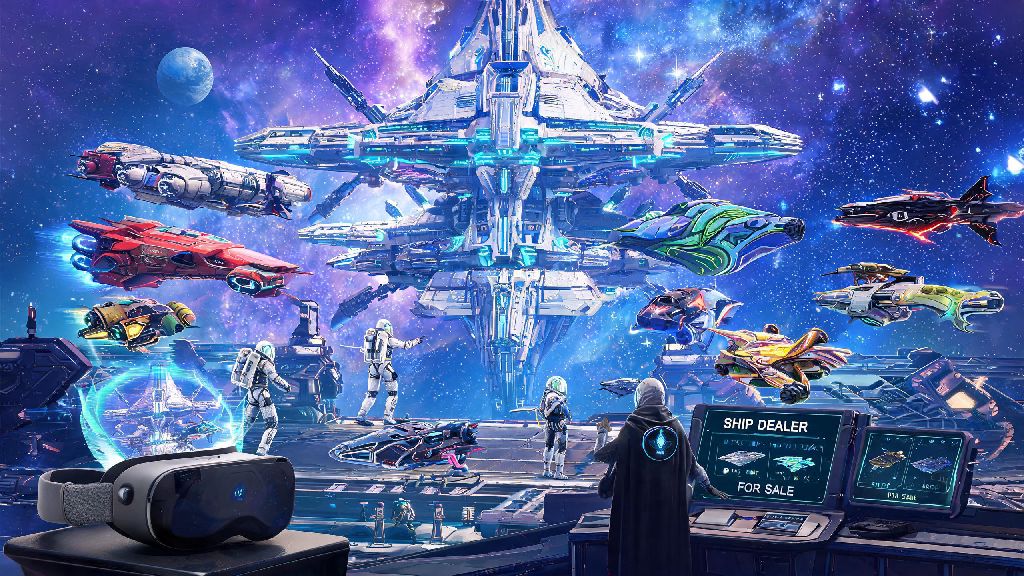
I’ve spent over 400 hours wandering No Man’s Sky’s endless procedurally generated galaxies, and for the first 100 of those hours, I played completely alone. I had no clue how to invite friends in No Man's Sky, and I kept running into weird errors every time I tried to send an invite. After testing every possible workaround and talking to dozens of other co-op players, I’ve put together this no-fluff guide to get you and your crew exploring together in minutes, no tech degree required.
Pre-Requisites Before Sending No Man's Sky Friend Invites
Before you start spamming invite buttons, there are a few basic boxes you need to tick first. Skip these, and you’ll almost definitely run into errors or failed invites. Multiplayer functionality only unlocks after you complete the initial "Awakening" tutorial, so don’t try to invite friends when you’re still stuck on your starting planet fixing your scanner. You’ll need to fully repair your first starship and warp to your second star system before the social menu becomes available.
If you’re playing a custom game mode, double check that multiplayer is enabled in your mode’s settings. Some niche custom modes, like permadeath challenge runs, turn off multiplayer by default to prevent players from getting outside help. You’ll also want to make sure neither you nor your friend have your game set to offline mode, which blocks all incoming and outgoing invites automatically.
It’s also a good idea to check if Hello Games servers are running normally before troubleshooting on your end. Server outages are rare, but they do happen during major update launches, and they’ll block all invites until they’re fixed.
Step-by-Step Methods to Invite Friends in No Man's Sky
There are three main ways to send invites, depending on whether you’re playing with people on the same platform or crossplay. All methods work the same across all supported platforms, so you don’t have to learn different steps for PC vs. console.
The first and easiest method is using the in-game social menu. On PC, press Escape to open the main menu, then navigate to the Social tab. On console, press down on the D-pad to open the quick menu, then scroll to the two-person social icon. You’ll see a list of all your platform friends who own No Man’s Sky. Simply select the friend you want to invite, then click “Send Invite” from the pop-up menu. They’ll get a notification in their game, and they can join your session with one click. Crossplay invites work across all supported platforms, including PlayStation, Xbox, Switch, and PC, so you don’t have to worry about platform restrictions anymore.
If your friend doesn’t show up on your platform friends list, you can use the session ID method. Go to your social menu, select the “My Session” tab, and copy the 8-digit session ID. Send that ID to your friend, and they can enter it in the “Join by ID” field in their social menu to join your session directly. This is the best method for playing with people you meet online who aren’t on your platform friends list.
The third method is inviting friends via the Space Anomaly Nexus. If you and your friend are both hanging out in the Space Anomaly, you can walk up to the Nexus terminal, select the “Invite to Group” option, and choose your friend from the list of nearby players. This is perfect if you want to team up for specific Nexus missions, as it automatically syncs your mission progress for the run.
Troubleshooting Common No Man's Sky Invite Errors
Even if you follow all the steps above, you might run into errors every once in a while. Most of these issues are easy to fix with a few quick checks, and you won’t have to reinstall the game or mess with complicated settings.
Many players run into invite delivery failures when they have multiple network-heavy apps running in the background while playing. Even light apps that run in your browser can eat up small chunks of bandwidth that No Man's Sky needs to send and receive session data reliably. A lot of players like to load up quick casual games between co-op missions to pass the time while waiting for other friends to log on, and it's easy to forget that apps like HiRummy can run in the background using bandwidth if you don't close the tab after you're done playing. If you're getting repeated failed invite notifications, try closing all unnecessary background apps first before trying more complex fixes.
If closing background apps doesn’t work, try restarting your game and your router. 70% of invite issues are caused by temporary network glitches that a quick restart will fix. If you’re on PC, make sure your firewall isn’t blocking No Man’s Sky’s network access. You can check this in your Windows Defender settings by making sure No Man’s Sky is on the list of allowed apps. If you get a "session not found" error, ask your friend to refresh their session by leaving to the main menu and reloading their save — this resets their session ID and fixes almost all session not found errors immediately.
If you’re playing on a modded save, be aware that some gameplay mods can break multiplayer functionality. If you’re running a lot of mods and can’t get invites to work, try disabling all mods temporarily and testing again. Most quality of life mods work fine in multiplayer, but big overhaul mods often don’t support co-op.
Pro Tips for Smooth Co-op Sessions After Inviting Friends
Once your friends are in your session, there are a few small tweaks you can make to ensure your co-op run goes off without a hitch. These are all tricks I’ve picked up after years of playing No Man’s Sky with my own friend group, and they’ve saved us from hours of frustration.
First, set a shared spawn point at your main base as soon as your friends join. You can do this by building a Base Computer and setting it as the default spawn for your group. That way, if anyone dies during a mission or gets lost, they’ll respawn right at your base instead of halfway across the galaxy. You can share resources and blueprints with friends directly from your inventory once they’re in your session, so you don’t have to all grind for the same materials separately when you’re building a shared base.
If you’re planning on taking on tough fights, like pirate fleets or sentinel walker raids, assign roles to your group to make the fight easier. One person can man the ship’s heavy weapons, another can gather repair materials mid-fight, and a third can place defensive turrets to cover your base. Turn off friendly fire in the multiplayer settings before you start exploring to avoid accidental fights between pals — it’s way too easy to shoot a friend by mistake when you’re both fighting off a swarm of sentinels.
You should also sync your mission progress before you start working on any main story missions. If you don’t sync, only the host will get credit for the mission progress, and your friends will have to redo the mission when they go back to their solo saves. You can sync missions by opening the log tab and selecting “Sync Mission Progress with Group” from the options menu.
Now that you know how to invite friends in No Man's Sky, you can leave those solo galaxy wandering days behind you and make the most of the game's massive open world with your favorite people. Whether you’re building a sprawling floating base, taking on elite interstellar pirate gangs, or just hopping from planet to planet looking for weird alien creatures, co-op makes every part of the game feel fresh and exciting. If you run into any invite issues down the line, just come back to this guide and run through the troubleshooting steps — you’ll be back to exploring together in no time.