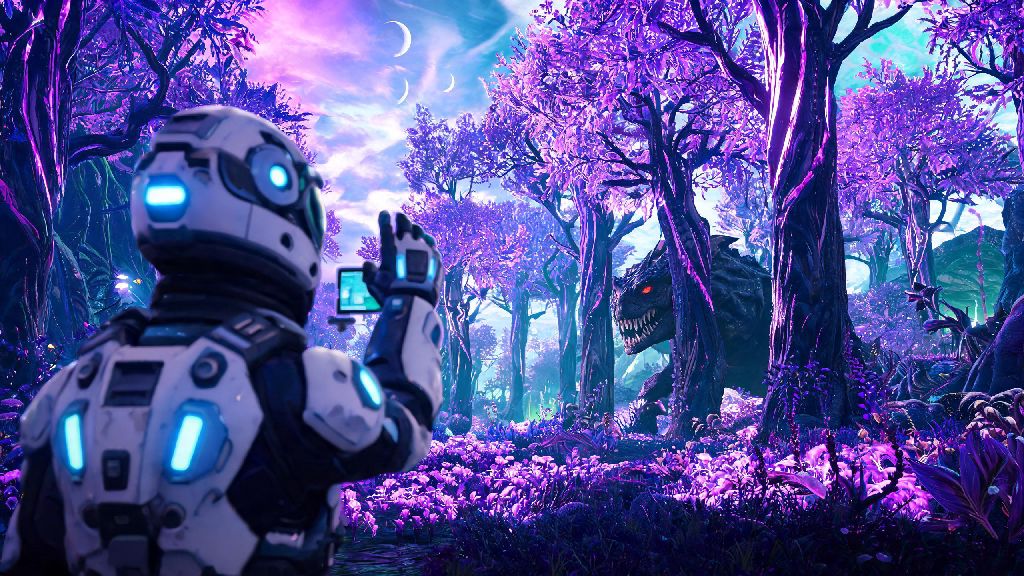
I still remember the first time I spawned into No Man’s Sky’s procedurally generated universe, squinting at my exosuit’s hands as I tried to take a screenshot of a glowing purple bioluminescent forest. I couldn’t figure out how to pull the camera back to show both my character and the otherworldly landscape behind me, and lost the perfect shot when a hostile fauna charged out of the underbrush. If you’ve ever found yourself stuck in one camera angle when you want to swap for screenshots, combat, or base building, you’re in the right place: we’re breaking down exactly how to change view in No Man’s Sky, plus tips to pick the right angle for every activity.
How to Change View in No Man’s Sky: Platform-Specific Shortcuts
The process to swap views is consistent across all play styles (on foot, in a starship, driving an exocraft, or even walking around your freighter), but the exact controls vary by platform. The good news is you don’t have to dig through menus every time you want to swap, unless you’ve fully remapped your controls. You can toggle views separately for each activity, so you can use first person for on-foot exploration and third person for flying, without having to adjust settings every time you hop in your ship.
Default shortcuts for all major platforms are below, and all work whether you’re in a single player save or multiplayer session with friends:
If you find the default shortcut clunky, you can remap the view toggle to any key or controller input in the Controls settings menu. PC players who use custom control schemes for mods or accessibility will find this especially helpful, as the default V key often clashes with common mod hotkeys.
When to Swap Camera Views for Better Gameplay
Most players pick a preferred view and stick with it for all activities, but swapping between first and third person can make tough tasks way easier, and even help you enjoy the game more. First person view is best for precision tasks like placing small base parts, aiming at distant pirate ships, or scanning for hidden mineral deposits. It’s also ideal for immersion, if you want to feel like you’re actually standing on a frozen alien moon watching a supernova light up the sky.
Third person view is better for almost everything else, in my experience. It lets you see threats that are off-screen in first person, like predatory fauna sneaking up behind you or pirate ships approaching from your blind side when you’re flying low. Third person is also perfect for screenshots and exploration, since you can frame your character against weird alien landscapes or show off your custom exosuit paint job next to a newly tamed giant creature. I always swap to third person when I’m hunting for buried technology modules, so I can spot the glowing marker through tall grass without having to pan my camera constantly.
If you struggle with motion sickness, third person view is almost always the better choice, as the camera movement is far smoother than the head bobbing and tight FOV of default first person. You can also adjust motion blur and FOV settings to reduce discomfort further, no matter which view you pick.
Fixing Common View Toggle Issues
Sometimes the view toggle stops working out of nowhere, and it’s almost always tied to a simple in-game restriction rather than a bug. The most common issue is the toggle being greyed out in the quick menu, which happens when you’re in a restricted sequence. Wait for the restricted sequence to end before trying to change views again – this includes story cutscenes, portal travel, summon animations for ships or exocraft, and the first 10 seconds of spawning into a new save.
If you’re on PC and the toggle doesn’t work at all, check if you’ve accidentally remapped the key or if a mod is conflicting with the default camera controls. Many UI overhauls and camera mods have their own separate view toggle hotkeys, so you’ll need to check the mod’s configuration menu to adjust them. Console players can usually fix unresponsive controls with a quick game restart, or by resetting their control scheme to default if they’ve made a lot of custom changes.
One lesser known quirk: you can’t swap views when riding a tamed creature by default. You’ll need to head to the Gameplay settings menu and turn on the “Allow Creature View Toggle” option first, if you want to switch angles while riding a giant flying alien bird across the map.
Customizing Your Default View Settings
You don’t have to toggle views every time you spawn into the game or hop in your ship. The Gameplay settings menu lets you set a default view for every activity, so the game loads straight to your preferred angle without any extra input. Setting your preferred default view saves you time every time you load into the game or swap vehicles, which adds up after dozens of hours of exploration.
You can set separate default views for on-foot travel, starship piloting, exocraft driving, freighter navigation, and even photo mode. I have mine set to first person for base building and third person for everything else, which means I never have to fumble with the toggle when I’m rushing to escape a storm on a toxic planet. You can also adjust the third person camera distance, so you can have it close for more intimate shots or pulled way back to see more of the world around you.
Don’t forget to adjust your FOV settings for both views while you’re in the menu. A higher FOV lets you see more of your surroundings, which is great for exploration, while a lower FOV feels more immersive for story missions and combat. You can also turn off first person head bobbing entirely if it makes you motion sick, which is a small tweak that makes the game far more accessible for many players.
Swapping between camera angles might seem like a small quality of life tweak, but it can completely change how you experience the game, whether you’re chasing a perfect screenshot of a ringed planet or fighting off a squad of pirate ships. Once you know how to change view in No Man’s Sky, you can pick the perfect angle for every part of your interstellar journey, no matter what platform you play on. Don’t be afraid to test both views for different activities, you might be surprised how much easier building or exploration gets when you’re using the right camera setting for the job.